
Quick Start
Install and configure the Rethink AI desktop application
title: Quick Start description: Install and configure the Rethink AI desktop application category: quickStart order: 2
This guide will help you quickly install and start using the Rethink AI desktop application.
Step 1: Download, Install, and Launch
Go to the Download page to get the installer for your operating system:
- macOS:
.dmginstaller (supports Apple Silicon and Intel) - Windows:
.exeinstaller
Follow the system prompts to complete installation, then launch the app.
Step 2: Configure Data Source
After launching, click the Settings button in the bottom-left corner to open the settings page:
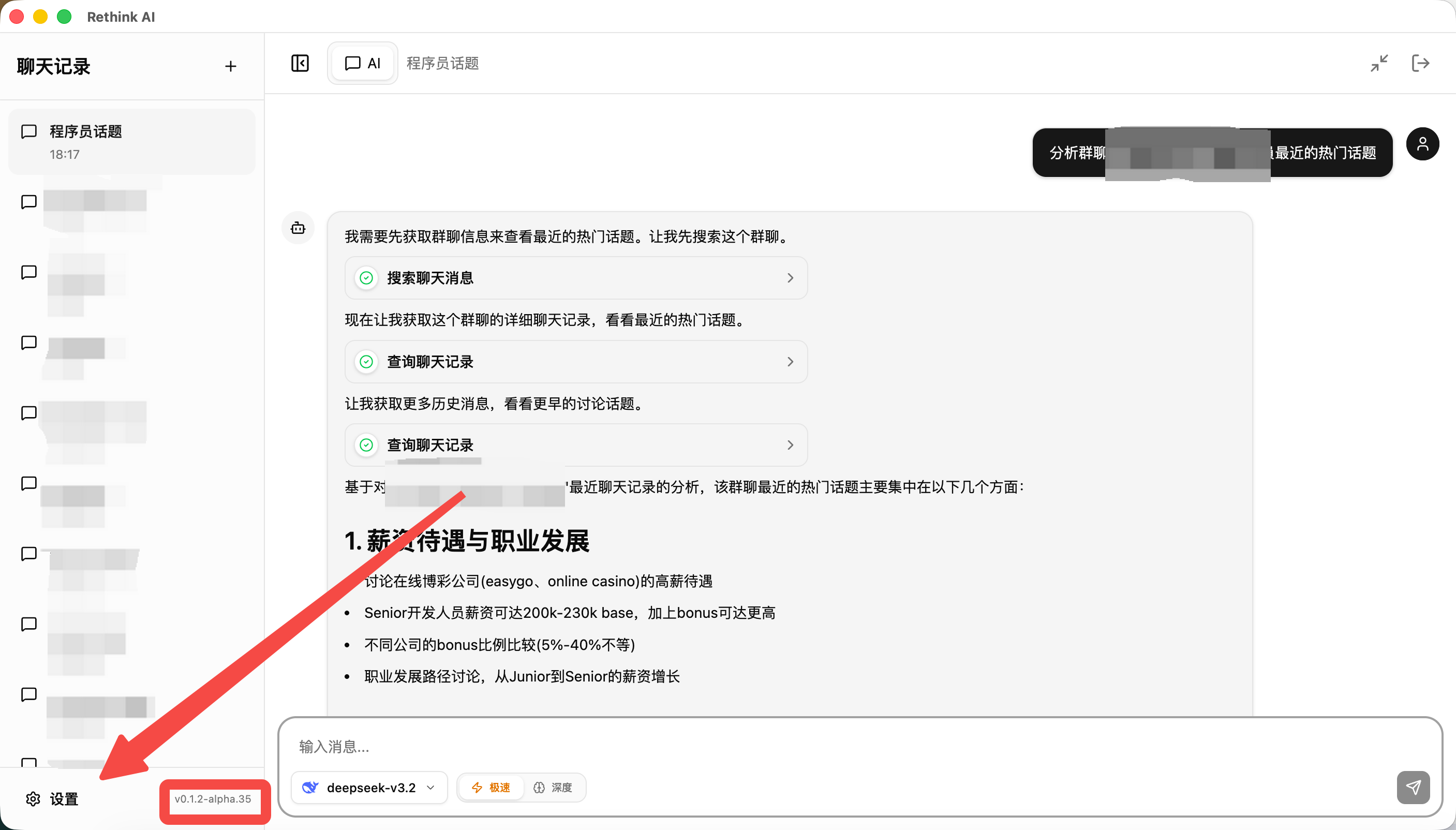
Configure Decryption
Select Data Decryption from the left sidebar in Settings, then follow the wizard steps:
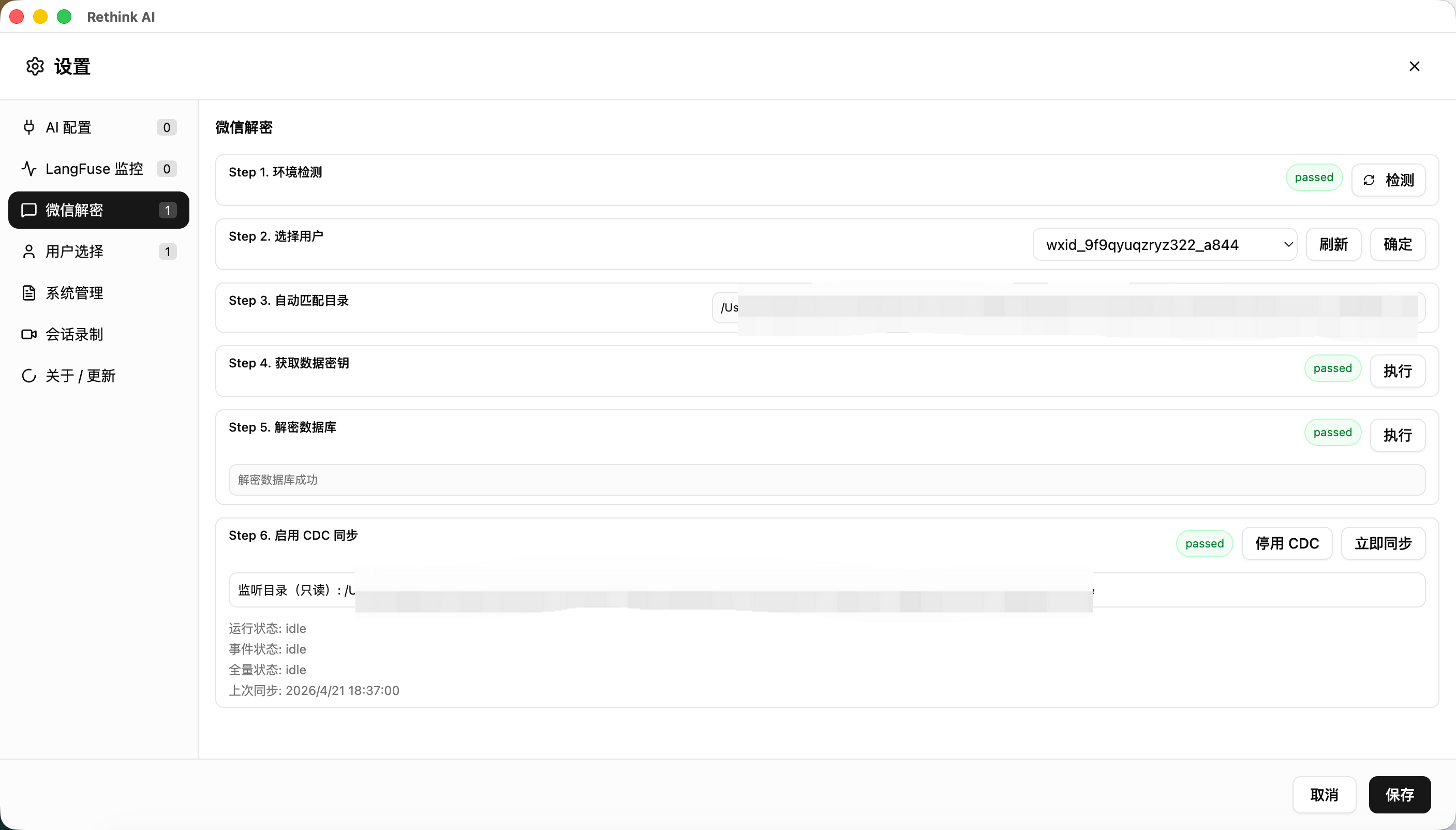
- Environment Check — Click "Check" and wait for the status to show passed
- Select User — Choose the target user from the dropdown, then click "Confirm"
- Auto-Match Directory — The system will automatically fill in the data directory path
- Get Data Key — Click "Execute" and wait for the status to show passed
- Decrypt Database — Click "Execute" and wait for decryption to complete
- Enable CDC Sync (Optional) — Turn on to sync new messages in real time
Once all steps are complete, click the Save button in the bottom-right corner.
Step 3: Mark Your Account
After decryption is complete, find and select your own account in the contact list to mark it as "Me":
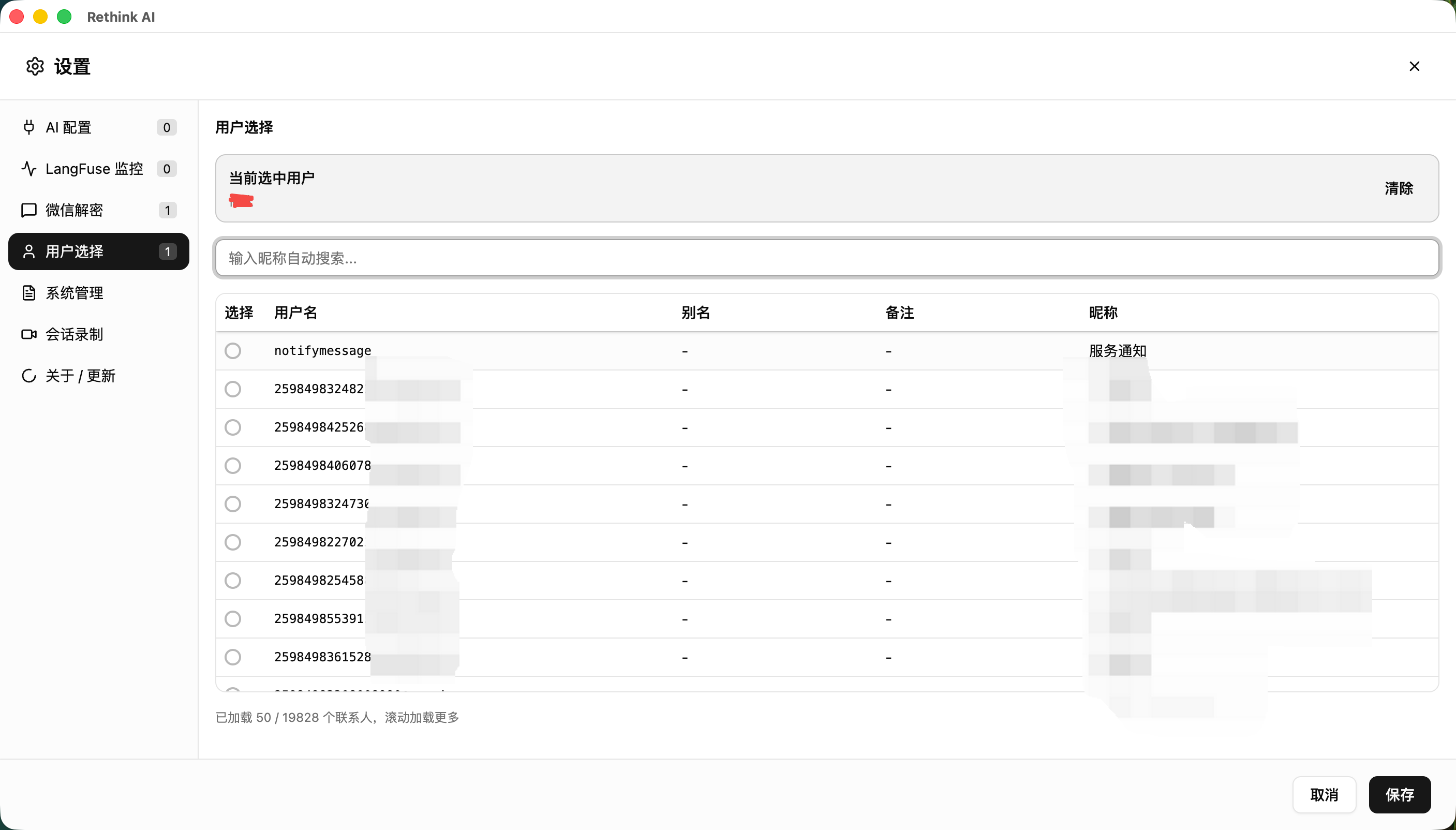
This helps the AI distinguish which messages are yours and which are from others when analyzing chat history, making responses more accurate.
Start Using
Return to the main screen — you're ready to chat with the AI:
- Type your question in natural language in the input box
- Select an Agent mode: Fast (quick response) or Deep (deep reasoning)
- The AI will automatically use tools to query and analyze your chat data
Example Questions
- "Show me my recent chat list"
- "Find my chat history with John"
- "Search all messages mentioning 'project progress'"
- "Who sent me messages in the last week?"
Next Steps
Want more details on features? Read the Usage Guide. Need more information on chat data integration? Read Chat Data Integration.
Having trouble with setup? See Troubleshooting.